Live Sound Troubleshooting: What to Check When Something Goes Wrong

On this page
The Golden Rule: Power Down Before You Replug
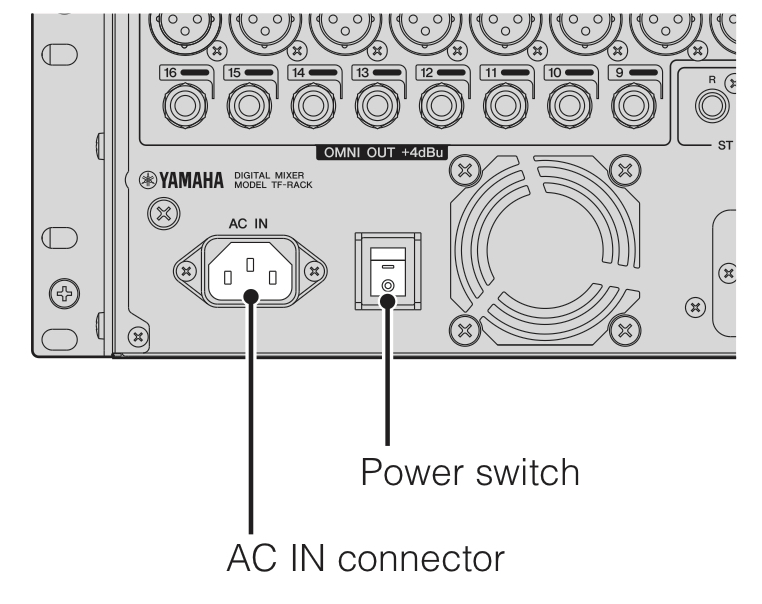
When something goes wrong mid-show, the instinct is to start yanking cables. Don’t. Before you plug in or unplug anything between the mixer and the speakers, turn off the power amps or powered speakers first.
Plugging and unplugging while gear is live is called “hot-plugging.” It can send a loud pop through the system that may damage speakers and will certainly startle everyone in the room. Switching off the speakers takes a few seconds and keeps a small problem from becoming an expensive one.
 Via hub.yamaha.com
One more mindset tip: decide whether the problem is local or global. A local problem affects only one or two channels, such as a single mic or one monitor. A global problem affects the whole system. That one question tells you where to start looking.
No Audio From One Side of the PA
If one main speaker is working and the other is silent, suspect cables first. They are the most common cause. Work through the problem in order rather than guessing:
- Get a steady test signal. Play music from a phone or laptop into a channel. Pan it to the center and send it to the main left/right (L/R) mix. Raise that channel’s fader to 0. Then slowly bring the master fader up to 0 and back down to around -10 or -15 while you work.
- Check every connection by eye and by hand.
- XLR connectors (the three-pin mic-style plugs) should click into place.
- Quarter-inch plugs should be pushed all the way in.
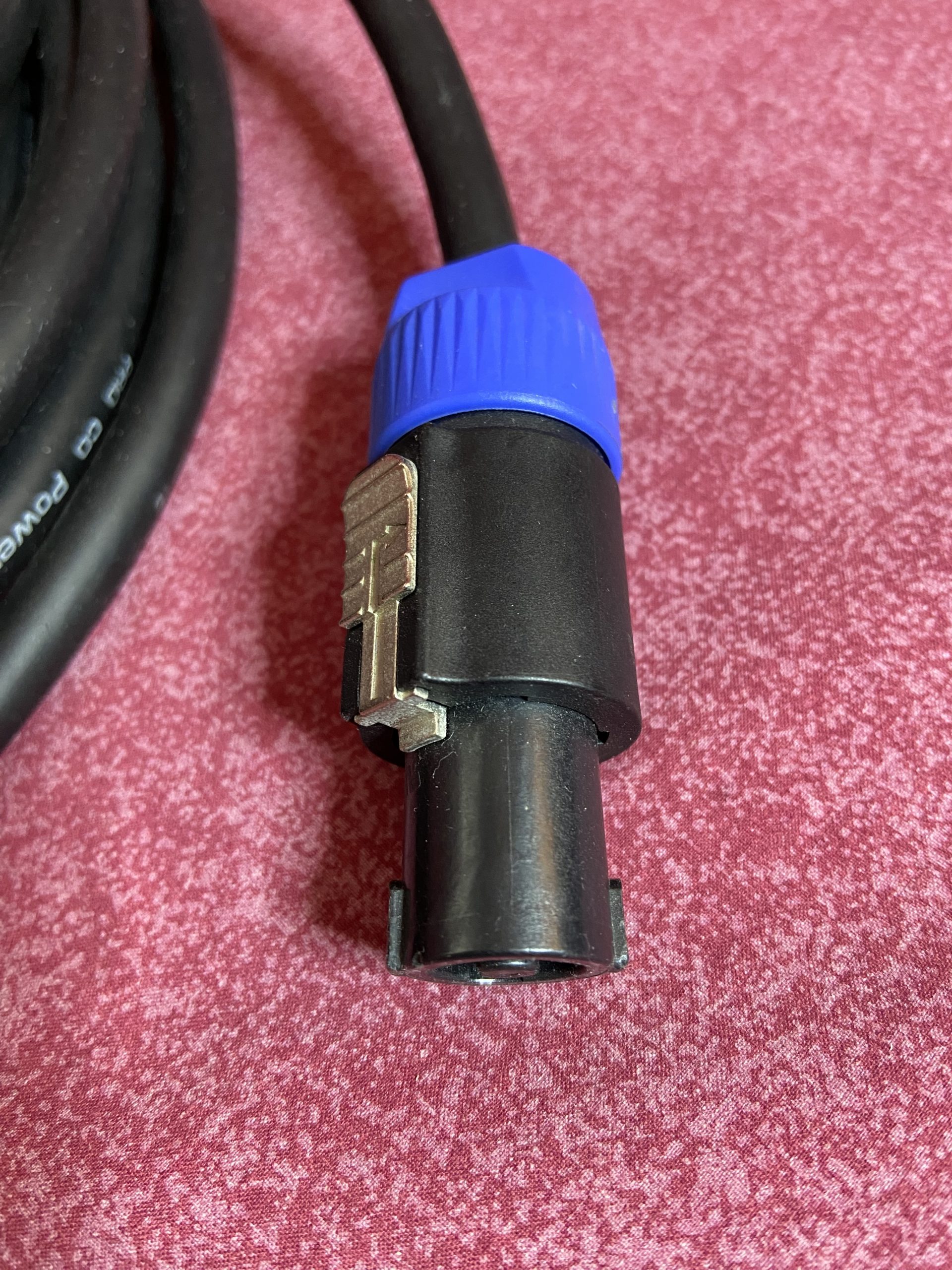
- Speakon connectors (the round, twist-lock speaker plugs) must be twisted until they lock.
- If you find a loose cable going into an amp or powered speaker, power that unit down before reseating it.
- Swap left and right at the mixer. Power down the speakers, swap the two main output cables at the mixer, then power back up.
- If the silence moves to the other side, the cable between the mixer and that speaker is bad. Replace it.
- If the silence stays on the same side, the problem is downstream. Check that speaker’s volume knob.
- Look for “protect” mode. Many amps mute their outputs to protect themselves, often because of a shorted speaker cable. Check the amp’s indicator lights.
- For passive speakers with a separate amp: power off the amp, then swap the speaker cables at the amp’s outputs. If the problem moves sides, replace the speaker cable.
 Via hub.yamaha.com
If a cable fails, label it for repair or throw it out on the spot. You don’t want it turning up at the next gig. An inexpensive cable tester that handles XLR, quarter-inch, RCA, and Speakon cables is worth keeping in your gig bag.
Hum or Buzz
A steady hum or buzz usually points to a ground loop. This happens when two pieces of gear are connected to electrical ground by two different paths, and the difference between those paths shows up as noise.
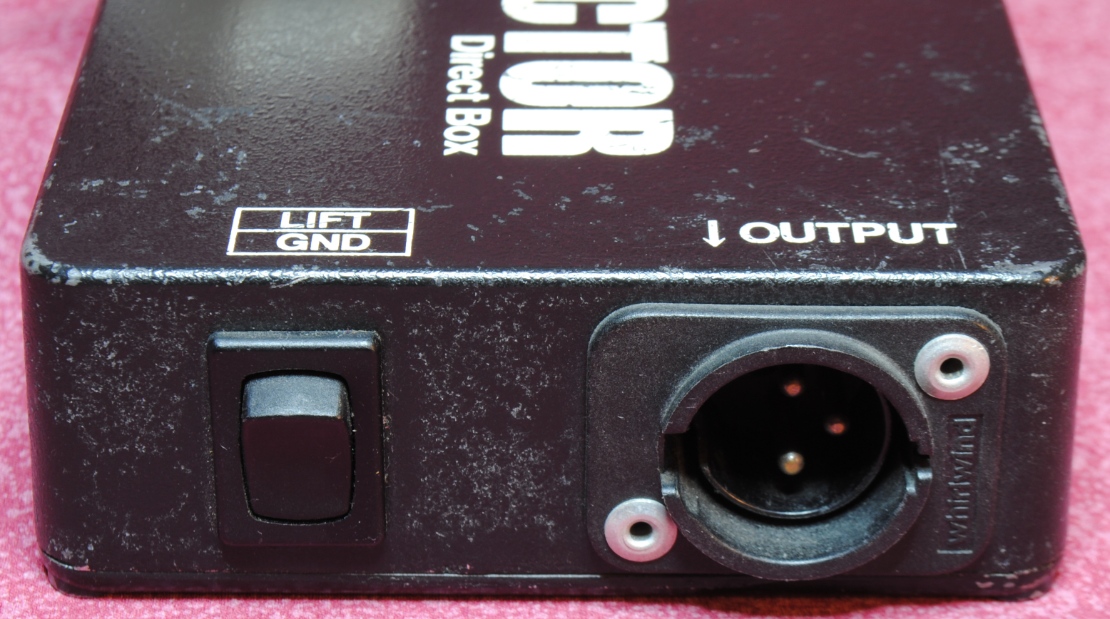
The classic example is a bass rig. The bass is grounded through the bass amp, and grounded again through the direct box (DI) feeding the mixer. A DI is a small box that converts an instrument’s signal so it can plug into a mixer’s mic input. Here’s what to try:
- Flip the ground lift switch on the DI. DIs have a ground lift switch that safely breaks the loop by disconnecting the audio ground. Flip it and listen. If the hum stops, you’re done.
- If the noise persists, change the cable. A faulty XLR cable can cause hum. If you also hear low volume or a loss of bass, one of the three connections inside the cable has probably failed.
- Plug the gear into the same outlet or power strip. When the mixer and backline amps draw power from different circuits around the room, ground differences between those circuits can cause hum. Running related gear from a shared source often helps.
- If nothing else works, a hum eliminator (an inline isolation device) can help.
 Via hub.yamaha.com
Never break off or bypass the ground pin on a power plug. This is not a hum fix. That pin is a safety feature that protects people from electric shock. The DI’s ground lift switch is safe because it only affects the audio connection, not the electrical safety ground.
Distortion
Distortion usually means something in the chain is getting more signal than it can handle. This is a problem with gain structure: how loud the signal is at each stage, from the microphone to the speakers. Start at the output end and work backward toward the stage.
- Master bus (the main mix output). Set the main master fader to 0, which is called “unity,” and watch the meters. Aim for an average around -6 dB, with peaks between 0 and +6 dB. If the meters run hotter than that, pull all the channel faders down together. Apply the same idea to aux outputs.
- Amps and powered speakers. If the mixer looks fine, the amp’s input may be overloaded. Turn down the volume controls on the amp. On powered speakers, check the mic/line switch. When the speaker is fed from a mixer, it should be set to line. On “mic,” the mixer will overload the input.
- Input channels. Each channel has a gain (or trim) knob at the top that sets how much signal comes in. An occasional blink of the red meter light is fine. A light that stays on means too much gain, so turn it down.
- The source. A very loud source can overload a mic or DI. Engage the pad switch on the mic or DI (a pad cuts the signal level) or ask the player to turn down. If the channel gain is already at minimum and still overloading, use the channel’s pad if it has one.
Monitor Not Working
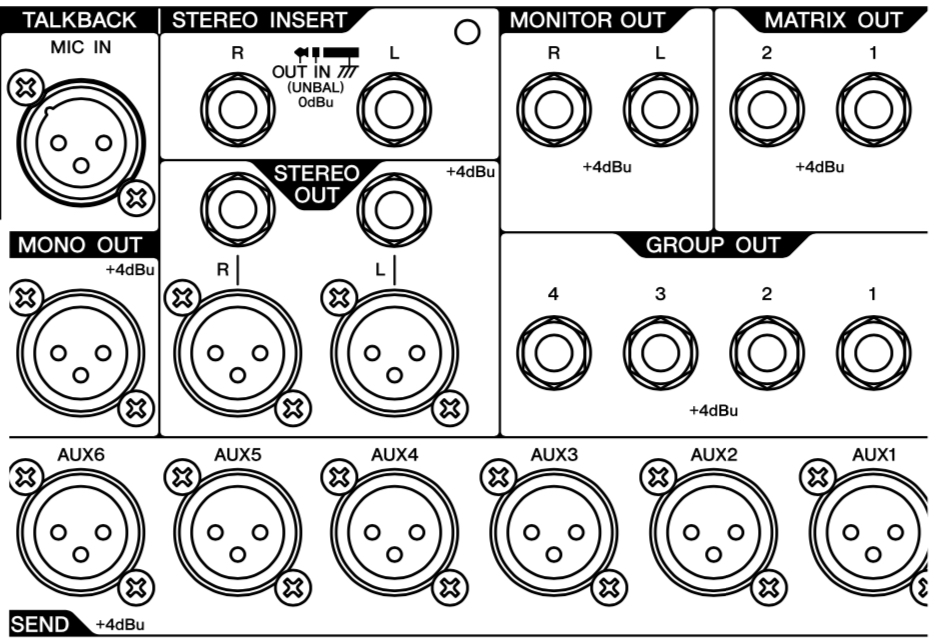
Stage monitors are usually fed by aux sends. An aux send is a knob on each channel that sends a separate mix, independent of the main mix, to a monitor. Each monitor mix also has its own master level control. Check these in order:
- Confirm the aux is set to “pre-fader.” Pre-fader means the monitor mix isn’t affected when you move the main channel faders. If it’s set to post-fader and a fader is down, that channel won’t reach the monitor.
- Use a channel you know is working. Turn its aux send knob for that monitor to 12 o’clock.
- Slowly raise the aux master for that monitor to unity.
- Check the connections the same way you did for the main speakers. Cables for the main outputs and the monitor outputs sometimes get swapped. If other monitor mixes are working, power down and swap cables at the mixer’s aux outputs to see whether the problem follows the cable.
 Via hub.yamaha.com
If a monitor starts feeding back with a howl or squeal, pull that aux master down right away. Then bring it back up slowly once the noise stops.
Quick Reference
| Symptom | First thing to check | Second thing to check |
|---|---|---|
| One side of PA silent | Cables and connectors (seated, locked) | Swap L/R at mixer to see if problem follows the cable |
| No sound at all | Power switches, power strips, breakers | Master fader up, master mute off, speaker volume up |
| Hum or buzz | Ground lift switch on DI | Swap the cable; plug gear into a shared outlet |
| Distortion | Master bus meters (average around -6 dB) | Amp input level, mic/line switch, channel gain |
| Monitor silent | Aux send set to pre-fader and turned up | Aux master level; swap aux output cables |
| Monitor feeding back | Pull down the aux master | Bring it back up slowly |
Work calmly, change one thing at a time, and always power down before replugging.
Sources
Live Sound Troubleshooting Tips, Part 1, Steve La Cerra, Yamaha Music (hub.yamaha.com)
Tools of the Trade: Live Sound Troubleshooting Tips, Part 2, Steve La Cerra, Yamaha Music (hub.yamaha.com)