How To Name Mix Versions So Nobody Plays The Wrong One

On this page
Name Your Mix Versions by Date and Time, and Stop Playing the Wrong One
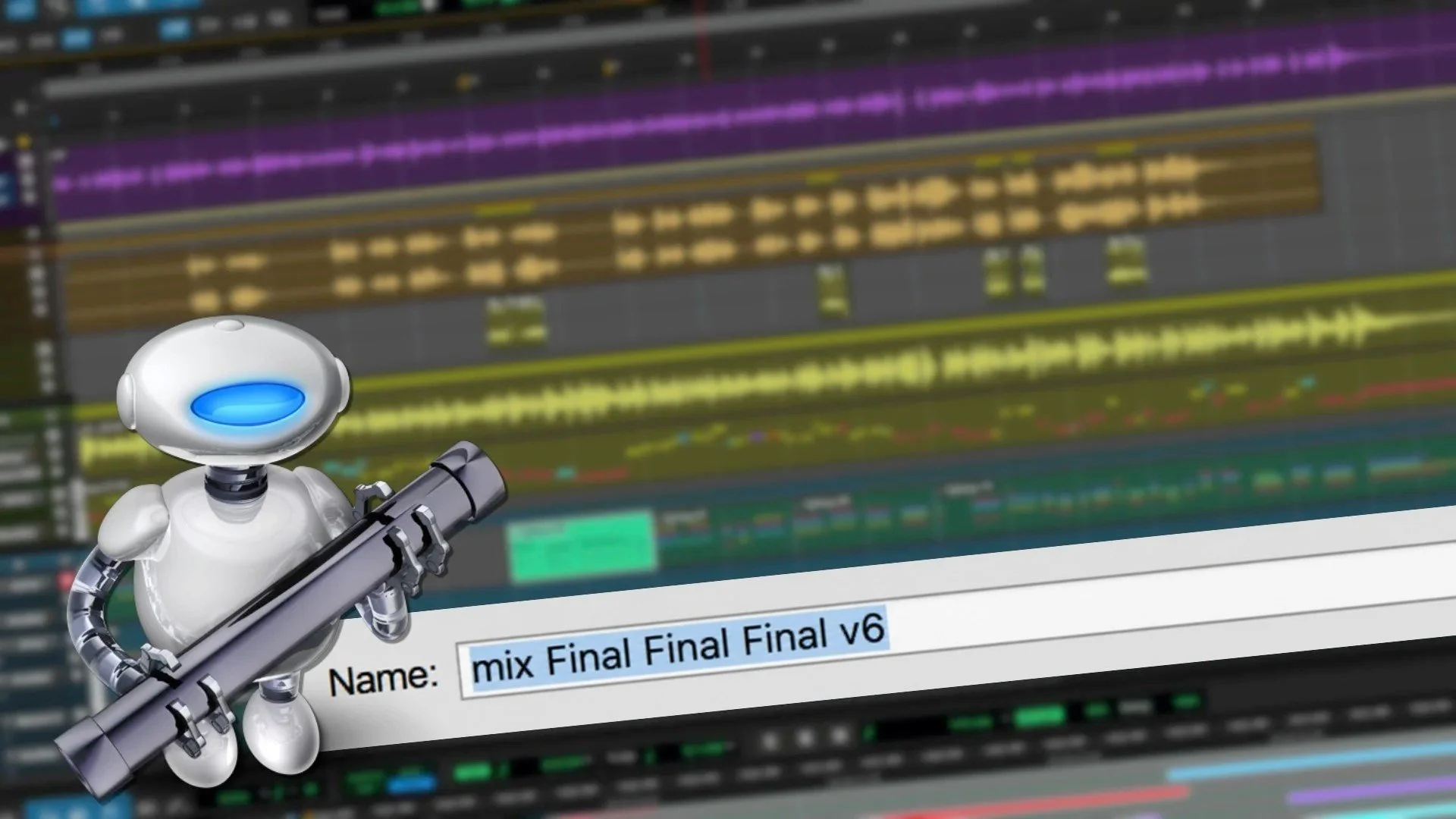
Everyone has heard the joke about the file called “Final.” The moment you label something final, the revision requests start arriving, and soon you’re sending “Mix Final Final v4.” Names like that tell you nothing about which file is newest. A stamp that records when each mix was made does.
The Naming Pattern
Use a plain, predictable format for every mix file:
Artist - Project - Song [date/time]
The bracketed stamp at the end is the part that matters. Glance at it and you know whether you’re hearing yesterday’s bounce (rendering your session down to an audio file) or something from last week. You never have to rely on memory or on file properties that change when a file is copied.
Including the time as well as the date covers days when you send several versions. Two mixes printed on the same afternoon still get distinct names, and nobody has to wonder which came first.
 Via production-expert.com
Why the Stamp Should Be ISO Format
Write the stamp in ISO style, an international standard that orders the parts from largest to smallest: year, then month, then day. Add the time in 24-hour notation, so 4:30 in the afternoon is 1630 rather than 4:30 PM. The pattern looks like this:
YYYY-MM-DD-HHMM
This order has a practical payoff. When you sort a folder alphabetically, the files line up in chronological order automatically. Formats like “11-3-26” or “March 4” can’t do that, because the computer sorts them by characters rather than by the calendar. With the ISO pattern, the newest mix always lands where you expect it, and you can spot the latest version at a glance.
Keep every month, day, hour, and minute at two digits, with a leading zero where needed. Sorting depends on that consistency. If one file says “9” and another says “10,” the computer can put them in the wrong order.
The Problem With Typing It by Hand
For a long time, the method was simply to type the date and time into the brackets yourself. That works, but it has costs:
- You have to look up the current time every time you bounce a mix.
- Each lookup costs a few seconds. That’s a small amount, but it repeats with every deliverable.
- Misremembering the date happens more often than most of us admit.
- Typos are easy to make, and a single wrong digit can push a file into the wrong spot when you sort.
Since the whole point of the system is trustworthy sorting, a manual step that can quietly break it defeats the purpose. The better approach is to let the computer generate the stamp.
The original author first got the idea after discovering Automator, Apple’s built-in automation tool on the Mac. The goal was a universal date-and-time stamp that could be inserted from the Services menu in any application. (The Services menu is the list of system-wide actions found under the application menu in many Mac programs.) The setup below uses the Shortcuts app in macOS.
 Via production-expert.com
Building the Stamp in Shortcuts
Here is the full process, step by step.
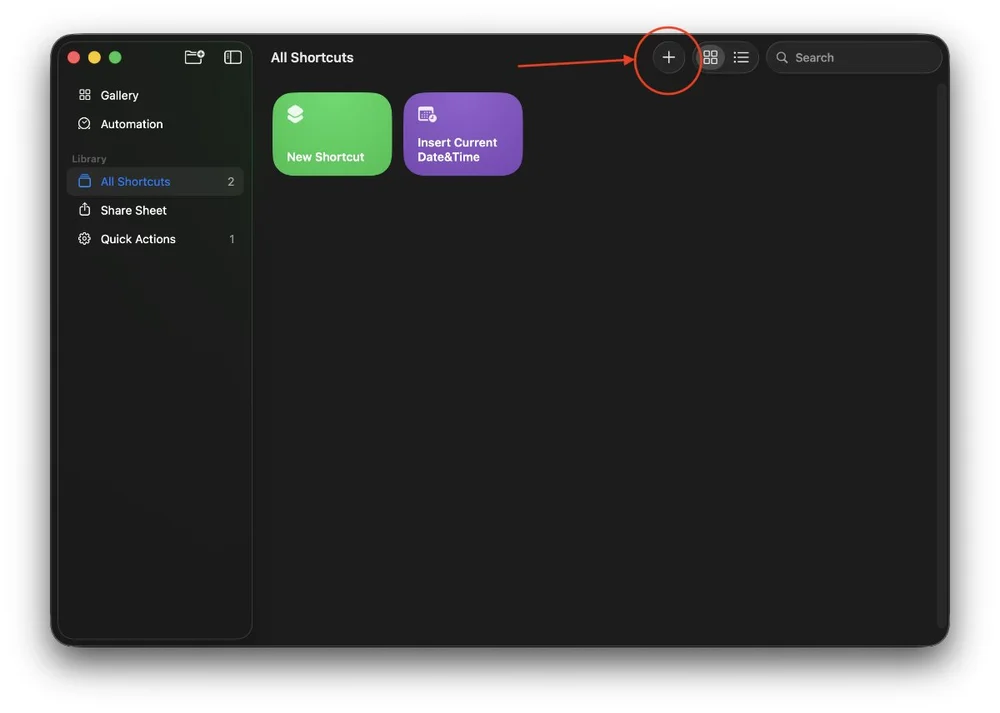
- Start a new shortcut. Open the Shortcuts app and click the “+” button.
- Add a Text action. In the next window, use the Search Actions field to find “Text.” Drag it into the main workspace.
- Insert the current date. Click in the text field and start typing “Current.” “Current Date” will appear in the suggestions. Choose it.
- Set a custom format. In the Current Date options, change the format to “Custom.” Then enter this format string:
yyyy-MM-dd-HHmm - Mind the capitalization. The capital letters matter. Uppercase “MM” means month, while lowercase “mm” means minutes. Uppercase “HH” gives a 24-hour clock. Using the capitals also keeps each value at two digits and adds a leading zero when necessary.
- Add your initials if you like. You can attach your initials to the stamp so people know who made the version. The original author uses
'smd'. The single quotes tell the format to insert exactly what’s inside them as literal text rather than treating it as a date code. The complete format becomes:yyyy-MM-dd-HHmm 'smd' - Add the output action. Use Search Actions again and find “Stop and Output.” In its “if there’s nowhere to output” field, choose “Copy to Clipboard.” That works as a safety net: if the app you’re in can’t accept the text directly, the stamp goes to your clipboard and you can paste it.
- Expose it system-wide. In the right-hand pane, click the “i” icon to open the info section. Check “Use as Quick Action,” then enable both “Finder” and “Services Menu.” This makes the shortcut available in the Services menu of every app on your Mac.
Give the shortcut a clear name, because whatever you call it is what appears in the menu.
Using It in Your Workflow
Once the shortcut exists, naming a mix takes a few clicks. When you bounce or export, type the Artist - Project - Song portion, add your opening bracket, run the shortcut from the Services menu, and close the bracket. The stamp drops in with the correct format every time.
The payoff comes from two things. First, you save a few seconds on every export, which adds up over a week of deliverables. Second, you remove the chances for human error. You can’t misremember the date, and you can’t mistype a digit that would throw off the sort order.
The same technique works for other repetitive text. Any snippet you paste often could become a Quick Action in the same way, so this is a good starting point for other small time savers.
With this in place, the last file in a sorted folder is the latest version, and the stamp on each file tells you when it was made. There’s no need for “Final” or “Final Final” in the filename.
Sources
How To Name Mix Versions So Nobody Plays The Wrong One, www.production-expert.com